AlfaPOS on the Stripe Reader S700 and S710
AlfaPOS runs directly on the Stripe Reader S700 and S710. You create the sale, take the payment and send the receipt on the reader, with no phone or tablet beside it.
- Runs on the reader itself
- Cash, card and invoices
- Same staff permissions as on the phone


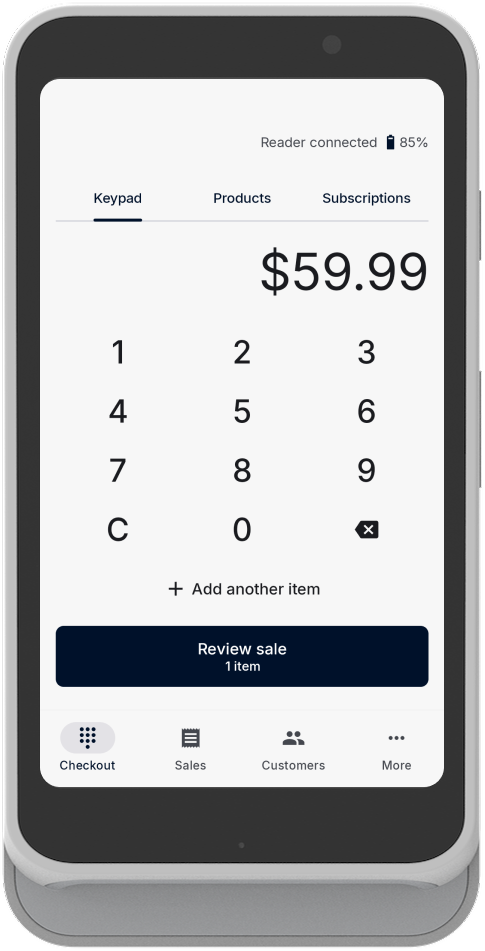
A point of sale in one device
The reader app has nearly everything the phone app has. Roles and permissions work the same way, so you still decide who can issue refunds or see the sales history.
You can take every payment method AlfaPOS supports, including cash and invoices.
Setting up your reader
You’ll need the AlfaPOS app on a phone for the first step.
-
Check that your Stripe account is managed by AlfaPOS
The S700 / S710 reader can run AlfaPOS only on a Stripe account that AlfaPOS manages, which means one created from the AlfaPOS app on iOS or Android.
To check, sign in at dashboard.stripe.com and look at your account name in the top left corner. If the line under it reads AlfaPOS, your account is ready.
If it doesn’t, create a second Stripe account from AlfaPOS. Stripe can copy your business details from the account you already have, so there’s little to fill in.
- In AlfaPOS, go to More → Stripe account and tap Disconnect Stripe account.
- Back on the More screen, tap the Connect Stripe banner, then Create new Stripe account.
- Sign in with your existing Stripe email and password.
- When Stripe asks which account to connect, tap Create new account.
- Choose the account Stripe should copy your business details from.
-
Register the reader in your Stripe Dashboard
Start on the reader:
- Swipe right from the left edge of the screen and tap Settings.
- Enter the admin passcode. Unless someone changed it, it’s 07139.
- Tap Generate pairing code and leave the code on the screen.
Then, in your Stripe Dashboard, switch to the account AlfaPOS manages (the one with AlfaPOS under its name):
- Go to Terminal → Readers and click Register reader.
- Enter the pairing code from the reader screen and click Next.
- Name the reader and pick a location.
- Click Register.
-
Restart the reader
Once the reader is registered, restart it. It installs AlfaPOS and opens the app by itself.
Stuck on a step, or have a question? Email us at [email protected].